

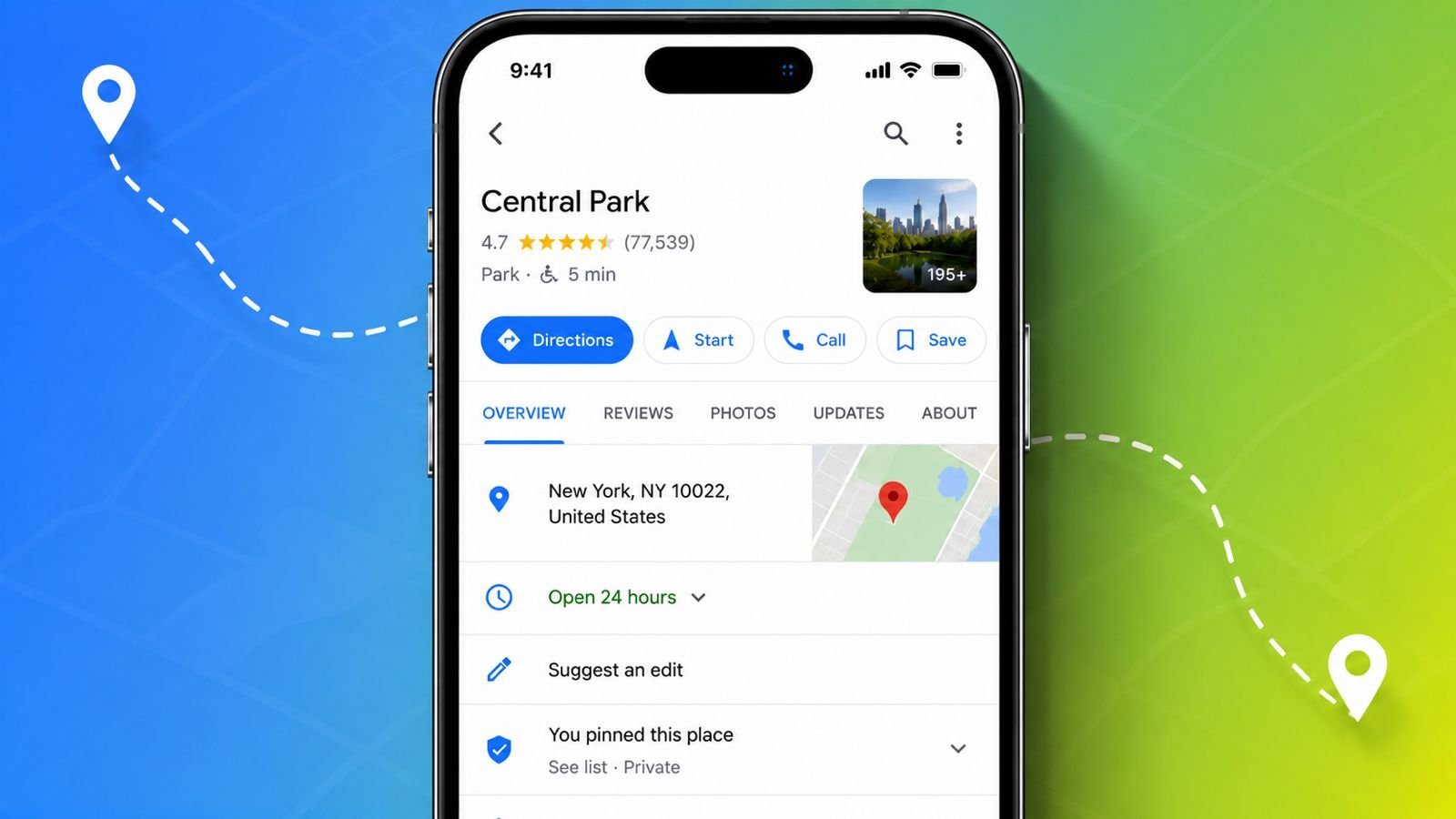
Google Maps is fantastic for finding registered businesses, parks, and addresses. However, sometimes the exact spot you want to mark doesn’t have an official name or address. Whether you are marking a specific spot on a beach, a hidden trailhead, or your parked car, dropping a custom “Dropped Pin” is the perfect solution.
Here is a complete step-by-step guide on how to pin a location on Android, iPhone/iPad, and desktop browsers, along with how to manage those pins once they are created.
How to Pin a Location on Mobile (Android, iPhone & iPad)
Since most people use Google Maps on the go, dropping a pin on a smartphone or tablet is the most common method. The process is virtually identical for both Android and iOS devices.
Open Google Maps and Locate the Spot
- Launch the Google Maps app on your device.
- Swipe and zoom in on the map to find the exact area you want to mark.
- If you want to pin your current physical location, tap the My Location button (the target-like icon) on the right side of the screen to center the map on your GPS coordinates.
Drop the Pin (Long-Press)
- Press and hold your finger on the exact spot on the map until a red pin icon drops onto the screen.
- A small informational card labeled “Dropped Pin” will slide up from the bottom of your screen.
Explore Your Options
Once the pin is dropped, tap on the bottom card or slide it upward to reveal several action buttons:
- Directions: Instantly calculate a route from your current location to the pinned spot.
- Save: Save the pin to one of your default lists (like Favorites, Want to Go, or Starred Places) or create a brand-new custom list.
- Share: Send the exact coordinates of your pin via a direct link, text message, email, or social media.
- Label: Give the pin a custom name (e.g., “Camping Spot” or “Dave’s House”) to make it easily searchable on your map.
How to Pin a Location on a Desktop Browser (Mac & PC)
If you are planning a trip ahead of time on your computer, dropping a pin using the Google Maps website is incredibly easy.
Go to Google Maps
- Open your preferred web browser and navigate to google.com/maps.
- Use your mouse to click and drag the map, and scroll to zoom in on your target area.
Drop the Pin (Left-Click)
- Left-click once on the exact spot you want to pin.
- A small grey pin will appear where you clicked, and a rectangular informational card will pop up at the bottom of the screen showing the address or GPS coordinates.
Convert to a Red Pin and Save
- Click on the coordinates or address inside the rectangular card at the bottom of the screen.
- The grey pin will turn into a permanent red pin, and a detailed panel will open on the left-hand side of your browser window.
- From this left-hand panel, you can click Save, Send to your phone, Share, or Add a label.
Advanced Tips for Managing Your Pins
Once you know how to drop a pin, you can use Google Maps features to make those coordinates work for you.
1. How to Give a Custom Name to a Pin (Labeling)
If you drop multiple pins, they will all look like generic red markers. Adding a label helps you identify them quickly.
- On Mobile: Swipe up on the “Dropped Pin” card, tap Label, type in a name (e.g., “Kayaking Launch Spot”), and tap Done.
- On Desktop: Click the pin, click Add a label in the left-hand panel, type the name, and press Enter.
2. How to Save a Pin Permanently
Generically dropped pins will disappear if you close the app or click elsewhere on the map. To keep a pin permanently:
- Tap the dropped pin on your map.
- Select the Save option.
- Choose a list (e.g., Starred Places) or tap New List to categorize it.
- Saved pins will now remain visible on your map as stars, hearts, or custom icons whenever you open Google Maps.
3. How to Find Your Saved Pins Later
- On Mobile: Tap the Saved tab at the bottom center of the Google Maps home screen to view all your custom lists and labeled pins.
- On Desktop: Click the Menu icon (three horizontal lines in the search bar), select Saved, and choose the list you want to view.
How to Remove a Pin
If you no longer need a pin on your map, clearing it is simple.
- For Temporary (Dropped) Pins:
- Mobile: Tap anywhere else on the map, or tap the “X” next to “Dropped Pin” in the search bar.
- Desktop: Left-click on an empty space on the map, or click the small “X” on the bottom coordinate card.
- For Labeled or Saved Pins:
- Tap the pin you want to delete, select Saved (which will have a green checkmark next to it), and uncheck the list it was saved to.