

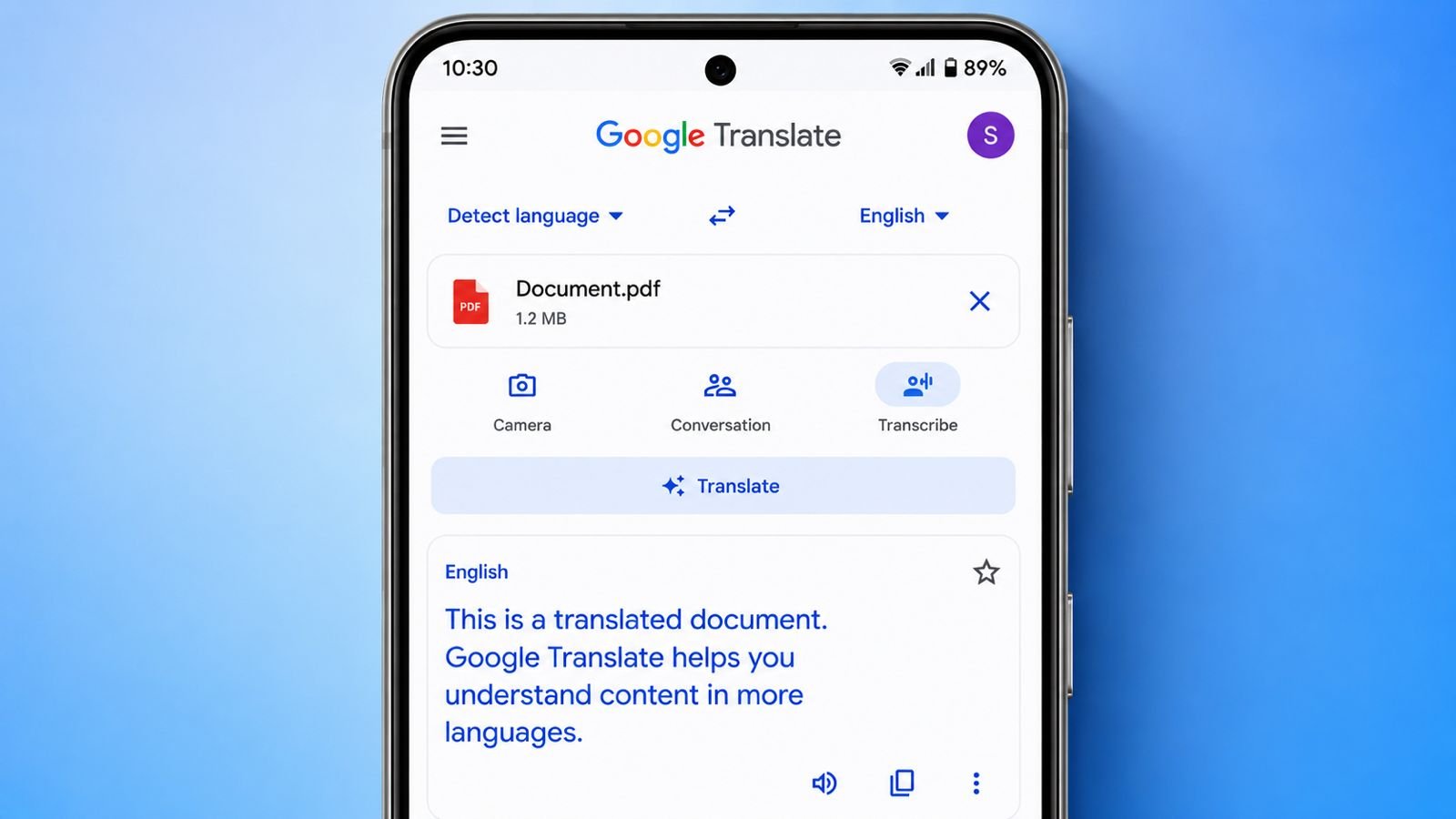
Many important documents arrive in foreign languages. Reading them becomes challenging for many users. Google Translate offers a fast and free solution and can Translate PDFs too. It supports more than 133 languages worldwide.
Use Google Translate to Translate PDFs Directly Online
Google Translate remains among today’s most useful tools. It helps people communicate across language barriers. The service launched during April 2006 worldwide.
Initially, it used statistical translation technology. Data came from large international documents. Examples included United Nations and Parliament records.
Today, artificial intelligence improves translation quality greatly. Machine learning helps translations become more accurate. The service handles many language tasks easily.
Google Translate can perform several useful functions:
- Translate text between many languages.
- Translate complete documents quickly.
- Translate websites into preferred languages.
- Translate photos in real time.
- Translate spoken conversations instantly.
The service supports over 133 languages currently. Popular options include English, Spanish, and Chinese. Users access it through browsers and apps.
When translating PDF documents directly, remember limitations. Uploaded files must remain below 10MB. Larger documents cannot be processed successfully.
This document feature requires larger screen devices. Desktop computers work perfectly for this purpose. Tablets and Chromebooks also support translation.
Mobile applications currently lack this document feature. Smartphone users should enable desktop browser mode.
Open Google Translate Website
Launch your preferred web browser first. Visit the Google Translate website directly. No account registration is necessary here. The service remains completely free for users.
Select the Documents Option
Locate the Documents tab near the top. Click it before uploading your file. The page changes to document mode.
Upload Your PDF File
Click Browse your files to continue. Choose the PDF from your device. Drag-and-drop uploads also work smoothly. Several file formats receive support here.
Supported formats include:
- DOCX
- PPTX
- XLSX
The upload begins after file selection.
Choose the Original Language
Select the document’s existing language carefully. This improves translation accuracy significantly.
Unsure about the language being used? Choose Detect language instead. Google identifies the language automatically.
Select the Target Language
Choose your preferred translation language next. Google supports hundreds of language combinations.
You can select English, French, German, or others. Many regional languages remain available too.
Start the Translation Process
Click the Translate button afterward. Google immediately starts processing your document. The process usually requires several seconds. Large documents may need additional time.
Download the Translated File
After completion, review translation availability. Click Download translation to save results. The translated document downloads automatically. Store it safely for future use.
Through Google Docs
Google Docs includes a built-in translation feature. This method works well for many users. It proves useful for text-focused documents. Files containing limited formatting perform best.
Unfortunately, mobile Google Docs lacks support. The feature works through web browsers only. Use desktops, laptops, tablets, or Chromebooks.
Upload the PDF to Google Drive
Begin by opening Google Drive. Upload your PDF document there. Wait until upload completion appears. The file becomes available inside Drive.
Open the PDF in Google Docs
Locate the uploaded PDF document. Right-click the file carefully. Select Open with from available options.
Choose Google Docs from the menu. Google converts the file automatically. The document opens within Google Docs.
Translate the Document
Open the Tools menu above. Select Translate document from options. A small dialog box appears. Provide a title for translations. Choose your desired language carefully.
Click Translate to continue. Google creates a translated copy immediately. The translated version opens separately.
Save the Translation as PDF
Many users prefer PDF documents afterward. Click File in the menu. Choose Download from available options.
Select PDF Document for export. The file downloads into your device.
Check the Final Formatting
Review the translated document carefully. Minor formatting changes sometimes appear. Text spacing may shift slightly.
Paragraph alignment can occasionally change. Small corrections may become necessary.
Complex Formatting
Some PDF files contain advanced layouts. These documents often present translation challenges. Direct conversion may reduce formatting quality.
Translation accuracy can also decrease slightly. Complex files often contain several elements.
Examples include:
- Fancy decorative fonts
- Multiple embedded images
- Large tables
- Page borders
- Colored backgrounds
- Detailed layouts
For these documents, another method works. Microsoft Word helps preserve content better.
Open the PDF Using Microsoft Word
Launch Microsoft Word on your computer. Click File and then Open. Browse and select the PDF file.
Word displays a conversion warning. This warning appears before editing. Click OK to continue safely. Word converts the PDF automatically.
Save as a Word Document
After conversion finishes successfully, continue. Open the File menu. Choose Save As from options. Enter a suitable document name. Select Word Document format. Click Save to finish.
Upload the Word File
Open Google Drive or Google Docs. Upload the saved Word document. Google imports the file automatically. Drag-and-drop uploading also remains available.
Translate Through Google Docs
After import completion, continue carefully. Open the Tools menu again. Select Translate document. Enter a document title. Choose the needed language.
Click Translate to proceed. Google creates another translated copy. The translated document opens separately.
Export Back to PDF
Open the translated document. Click File in the menu. Select Download from options. Choose a PDF Document. The final PDF saves automatically.
Why Complex PDFs Cause Problems
Not every PDF converts perfectly. Some elements experience formatting difficulties.
Common issues include:
- Table cell spacing changes
- Decorative page borders
- Colored page backgrounds
- Tracked editing changes
- Frames within documents
- Footnotes across pages
- Endnotes across sections
Additional elements create more challenges. These include:
- Audio content
- Video content
- Interactive buttons
- PDF bookmarks
- Document tags
- Reader comments
Certain font effects also struggle. Examples include glow and shadow effects. Word often converts these items differently.
Many become graphic images afterward. For heavily designed files, original access helps.
Common Translation Challenges and Helpful Tips
Machine translation improves every year significantly. However, limitations still exist today. Google Translate usually captures general meaning.
Simple language translates very successfully. Common languages receive better support overall. Complex content creates additional challenges.
Examples include:
- Technical industry terms
- Specialized professional language
- Humor and jokes
- Cultural references
- Wordplay and puns
Translation quality may vary considerably. Professional documents require careful review afterward. Native speakers provide valuable verification.
Fluent reviewers identify hidden translation mistakes. Always proofread important documents carefully.
This step improves final accuracy greatly. Google Translate remains a powerful free solution.
When used correctly, results become impressive. Understanding limitations helps avoid unnecessary problems.
The Bottom Corner
Google Translate translates documents, websites, images, and text. Direct uploads and Google Docs methods work well.
Always review translated files carefully. Human checking improves accuracy for professional documents.